
AI-powered analysis and optimization for your Etsy product photos — the images buyers see first and judge fastest.
This guide shows you how to open and use the Image Assistant step by step — where to find it in your dashboard, how to add your image, pick a report language, run the analysis and read the results. It's a built-in dashboard tool, so there's nothing to install.
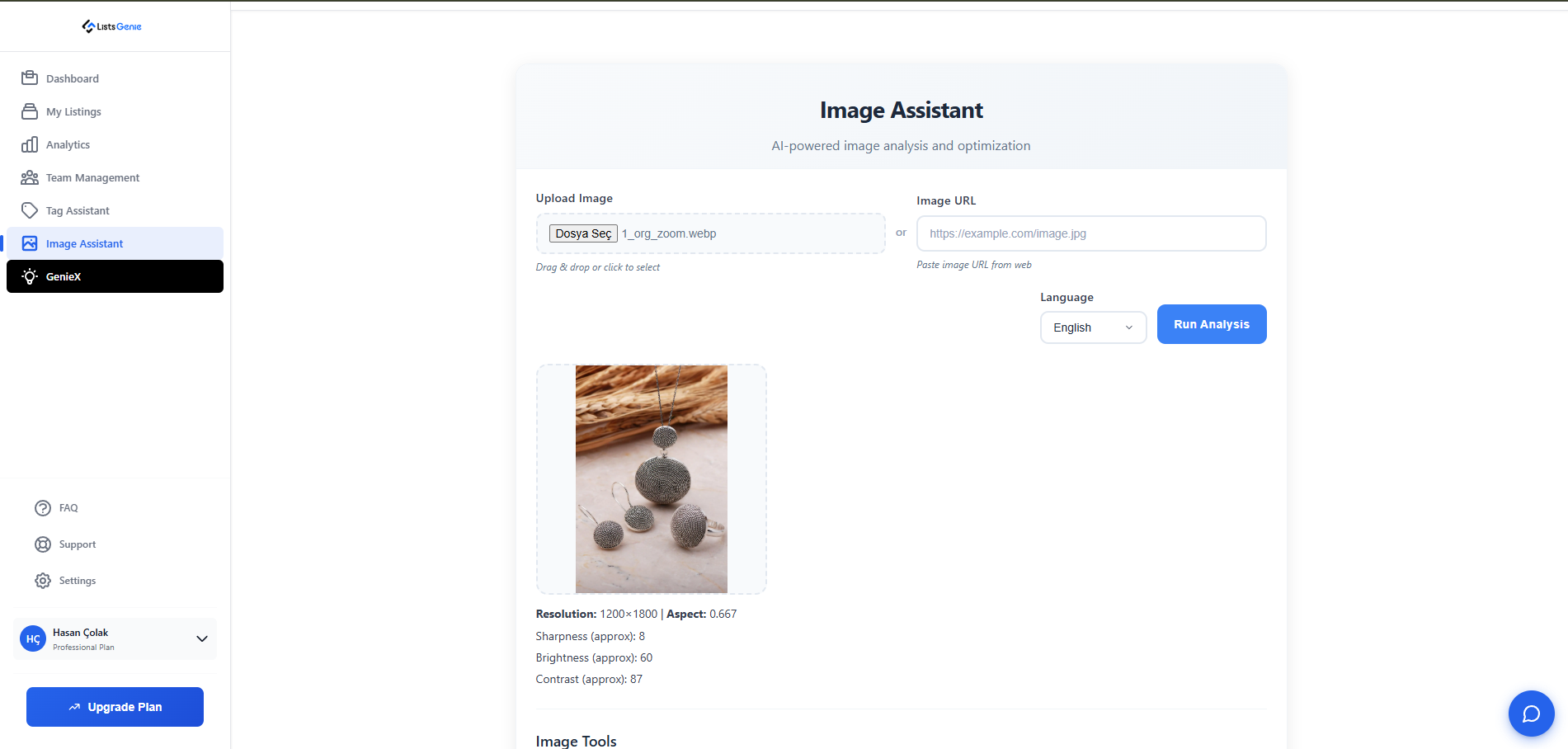
The Image Assistant is available on the Growth and Professional plans. Each analysis uses 2 credits. You'll find it under Image Assistant in the dashboard sidebar.
Sign in at listsgenie.com/dashboard and click Image Assistant in the sidebar.
Either upload an image file (drag & drop or click to select) or paste an image URL from the web. Use the actual photo you plan to publish so the feedback matches what buyers will see.
Choose the language for your analysis from the dropdown: Turkish, English, German, French, Spanish or Italian.
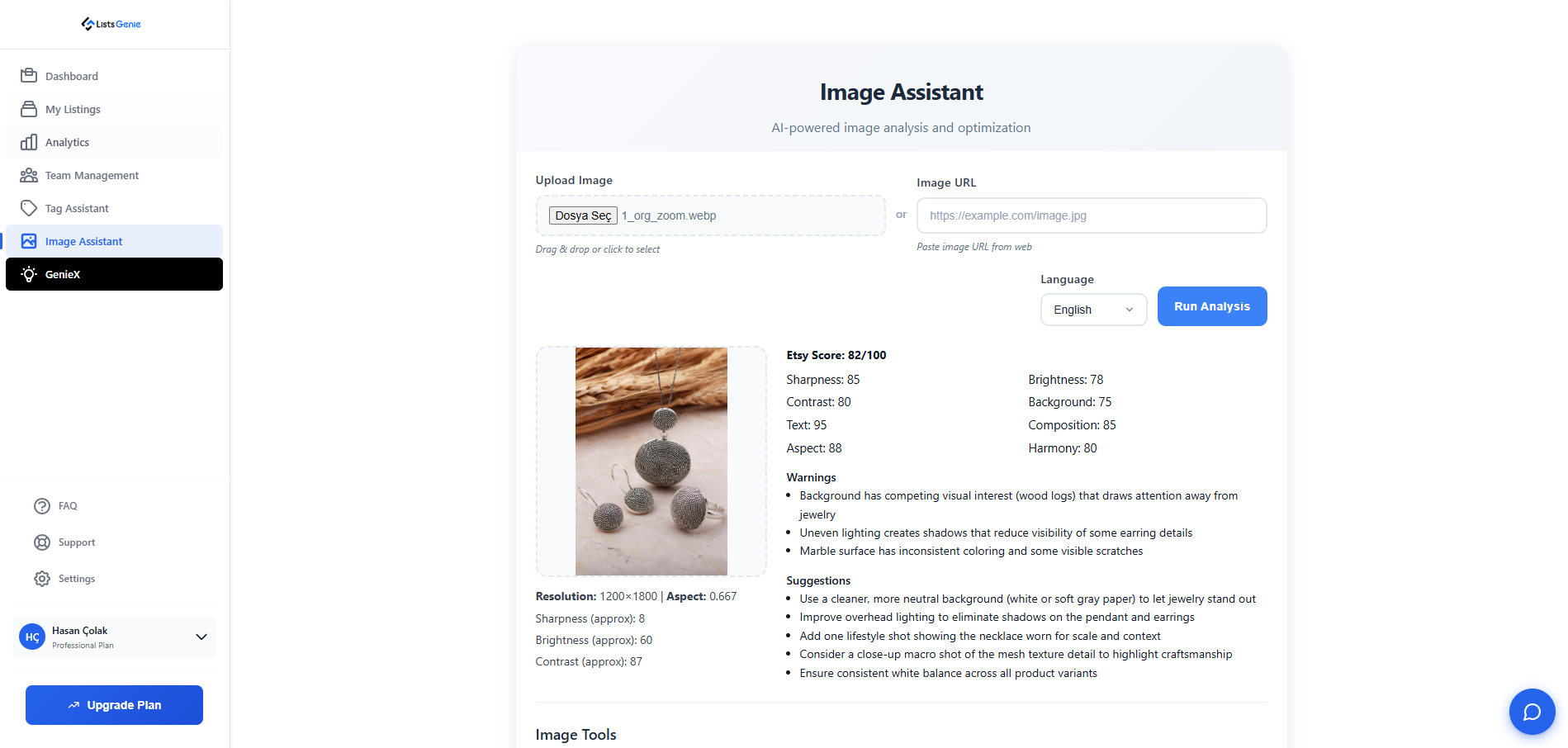
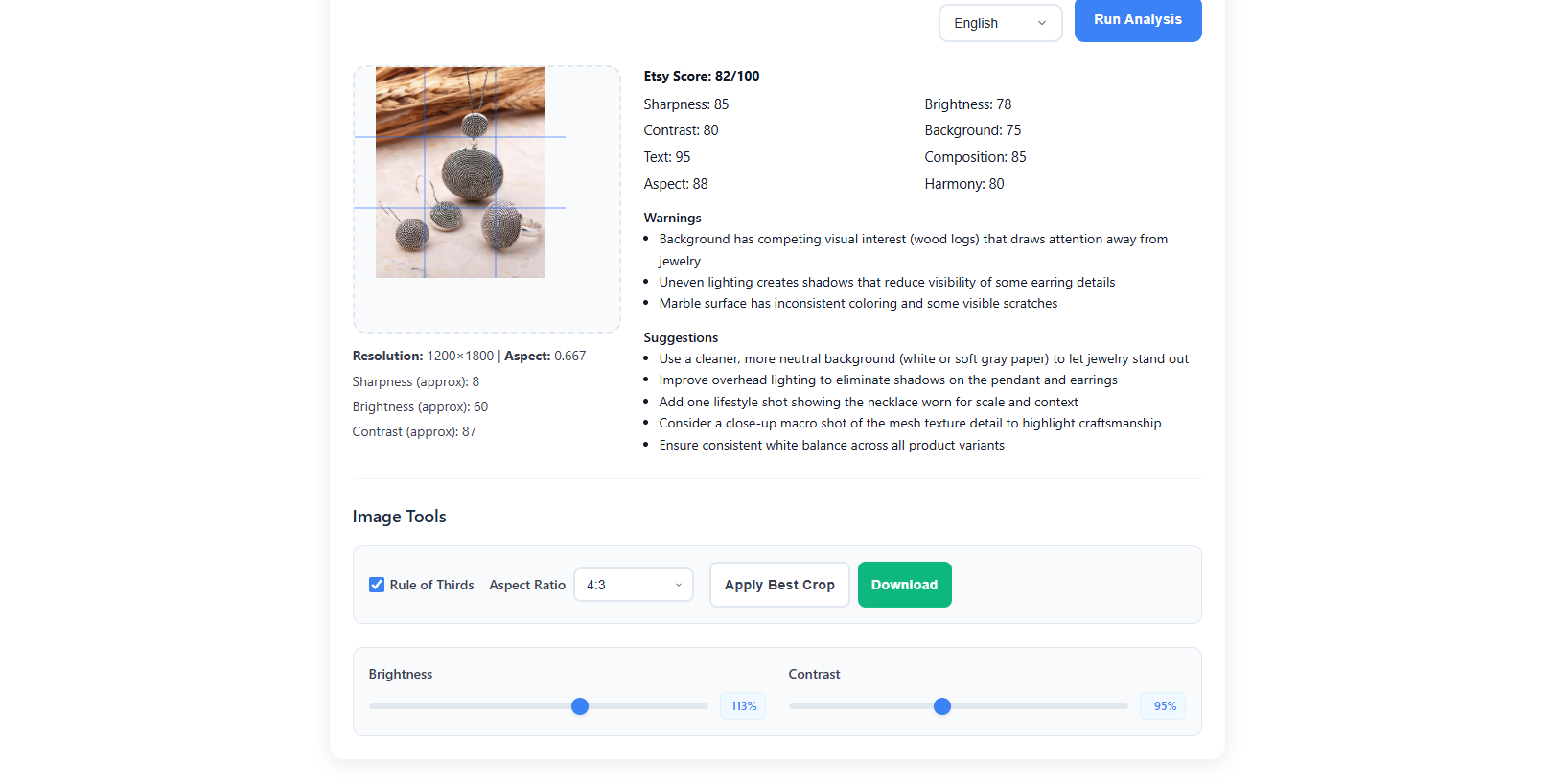
Click Run Analysis. In a few seconds you'll get an AI score plus composition and brightness feedback, best-crop suggestions and the option to export a high-quality version. Use the notes to reshoot or re-crop before you publish.
A quick, objective read on how strong your photo is overall.
Checks framing, balance and lighting — the things that make a thumbnail pop.
Guidance on the strongest crop so your product fills the frame.
Export a clean, high-quality version ready for your listing.
| Credit cost | 2 credits / analysis |
| Plans | Available on Growth and Professional |
| Input | Image file upload or image URL |
| Report languages | Turkish, English, German, French, Spanish, Italian |
Upgrade to Growth or Professional and let the Image Assistant grade and sharpen your product photos.
See Plans →