
Fill all 13 Etsy tag slots with high-volume, on-trend keywords — from just a couple of seed tags and one click.
This guide shows you how to open and use the Tag Assistant step by step — where to find it in your dashboard, what to enter (category, language and seed tags), how to generate all 13 tags and copy them into Etsy. It's a built-in dashboard tool, so there's nothing to install.
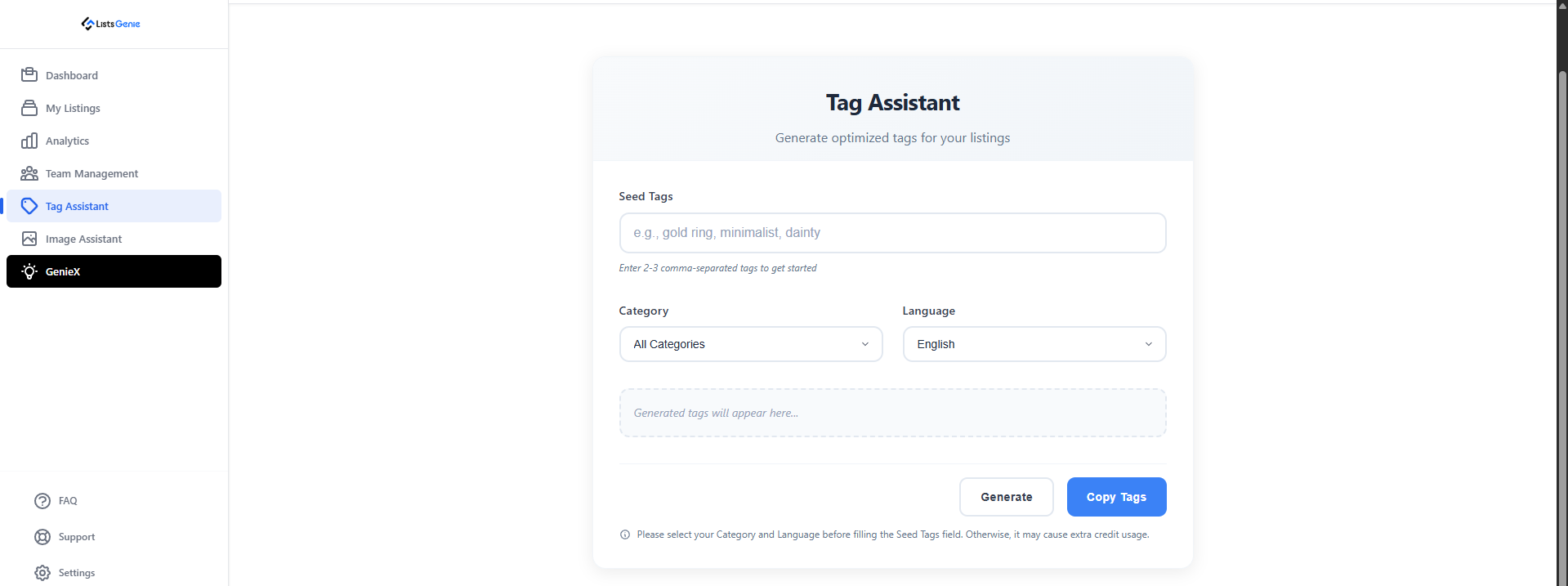
The Tag Assistant is included on all paid plans (Basic, Growth and Professional) as part of "All 13 Tags with Trending Analysis." Each run uses 1 credit. You'll find it under Tag Assistant in the dashboard sidebar.
Sign in at listsgenie.com/dashboard and click Tag Assistant in the sidebar.
Select the Etsy Category that matches your product and the output Language (English, Turkish, German, French, Spanish or Italian). Setting these before you type your seed tags gives more accurate results and avoids wasted credits.

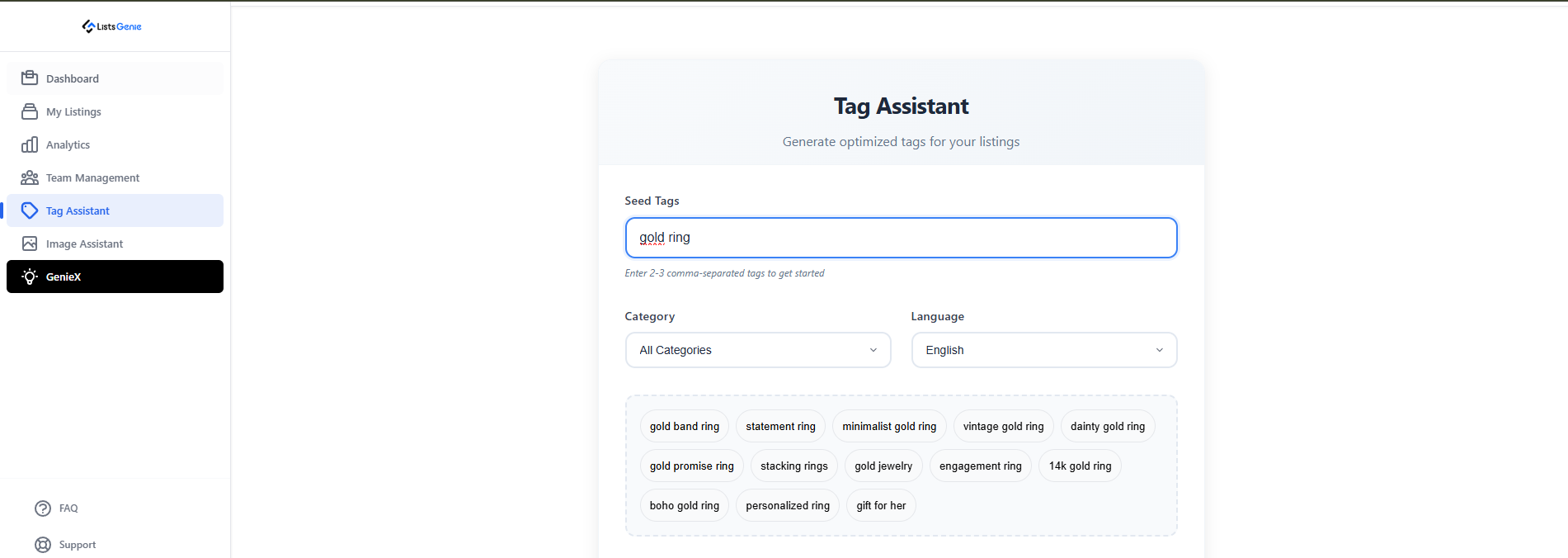
In the Seed Tags field, type two or three comma-separated tags that describe your product — for example "gold ring, minimalist, dainty". These give the AI a starting point for the full set.
Click Generate. The Tag Assistant returns 13 optimized tags with trending analysis. Review them, then hit Copy 13 Tags and paste them straight into your Etsy listing's tags section.
No more leaving tags empty or repeating the same phrase — every slot is used.
Tags are chosen with current search trends in mind for better visibility.
Results are tuned to your Etsy category, not generic keywords.
Generate tags in English, Turkish, German, French, Spanish or Italian.
| Credit cost | 1 credit / run |
| Plans | Included on Basic, Growth and Professional |
| Input | 2–3 seed tags + category + language |
| Output | 13 optimized tags with trending analysis |
Generate all 13 optimized Etsy tags in one click with the Tag Assistant.
Open Your Dashboard →